How to Set Up Multilingual Support for Webinars
Last updated: April 21, 2026
What This Does
As Zuddl scales to global audiences, organisers increasingly run multi-lingual webinars and events. The multilingual feature reduces organiser effort, eliminates translation gaps, and ensures a consistent experience for global attendees — especially in live moments.
It covers two key areas:
Event UI and content translation: All system texts, landing pages, registration forms, and live webinar UI elements are translated into your selected languages. Organizer-entered text (event name, description, session details) is auto-translated using Google Translate. Attendees use a language switcher to pick their preferred language.
Live attendee translations: Dynamic, real-time content — including chats, live polls, and surveys — is automatically translated for attendees in their selected language.
Note: This feature is available for Webinars and Field Events. English is the default language for all events.
Before You Begin
You need Organizer access to the webinar.
The webinar must already be created in Zuddl — language selection is available after event creation.
All organizer-entered text (event name, session titles, descriptions, custom fields) should be in the default language you set.
Supported Languages
English (default)
French
German
Spanish
Italian
Portuguese
Japanese
How It Works
Across the platform, Zuddl uses Google Translate as the underlying engine to power auto-translations. This applies to:
Dynamic, real-time attendee content: Chats, polls, surveys, and system messages.
Event and webinar metadata entered by organisers: Event name, event description, session details, and other custom text.
Important: Auto-translation kicks in only for content that is not already translated via system translations or organiser-provided CSV translations. This avoids double-translation issues.
Steps
Part 1: Select Languages for Your Webinar
Open your webinar in the Zuddl organizer dashboard.
Go to Basic Details.
Set the primary language for your webinar. By default, this is English, but it can be changed based on your requirements.
In the Webinar languages section, click + Add language to add additional languages.
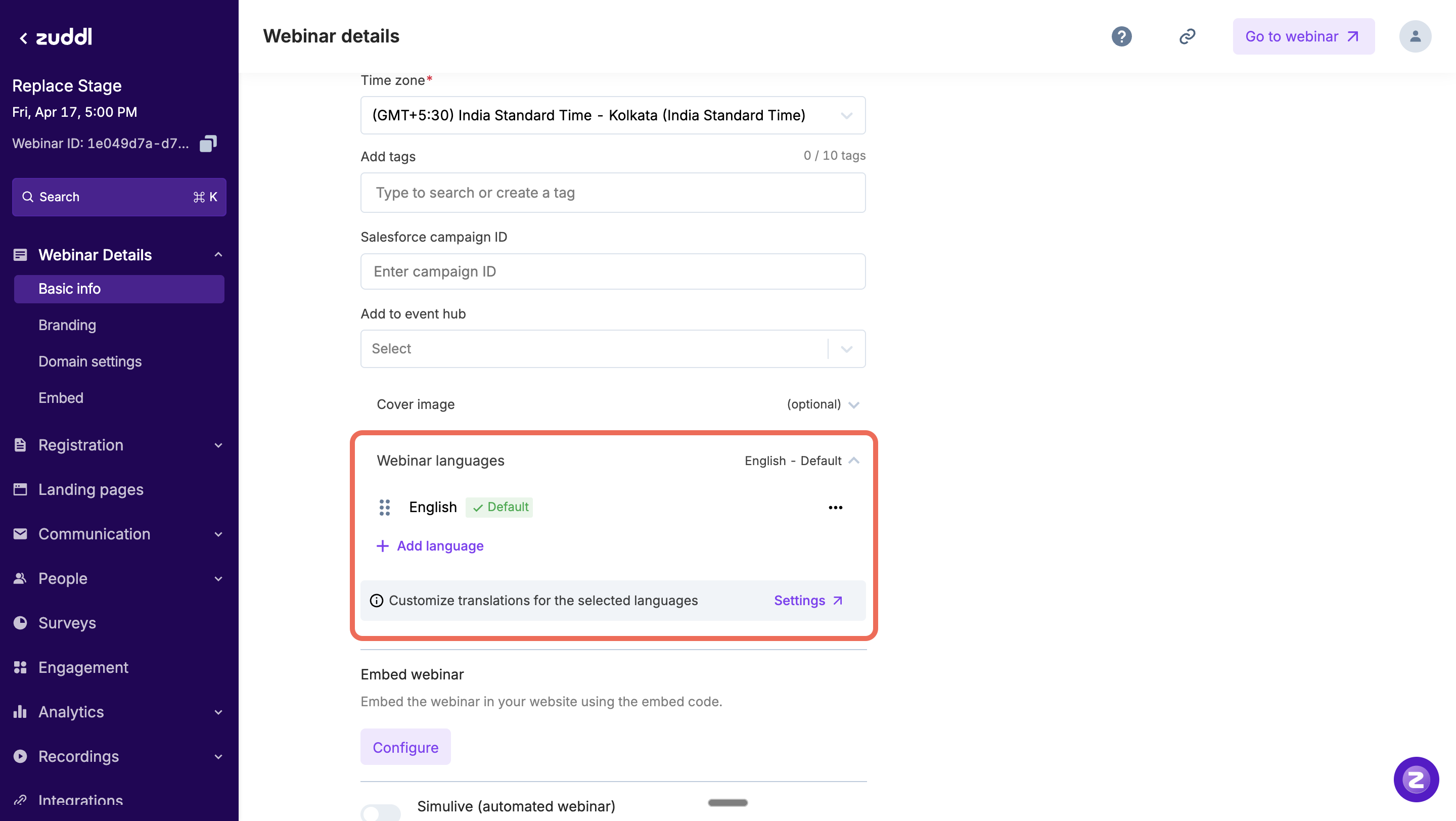
In the Select languages popup:
Select the languages you want to offer attendees.
Set one language as the Default — all organizer-entered text is expected to be in this language, and it will be the language attendees see first.
Click Proceed to save.
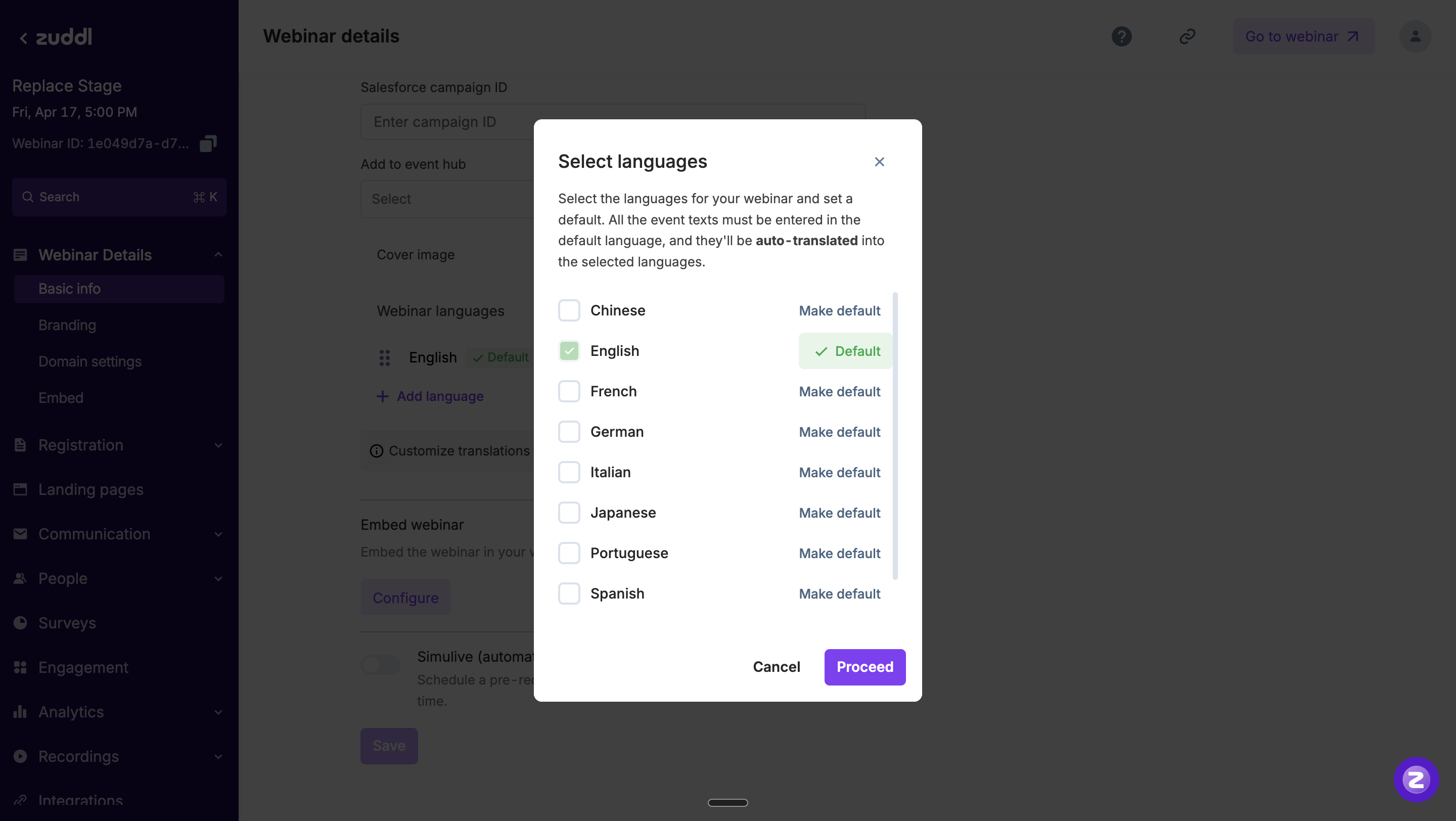
Warning: The default language is mandatory and cannot be removed.
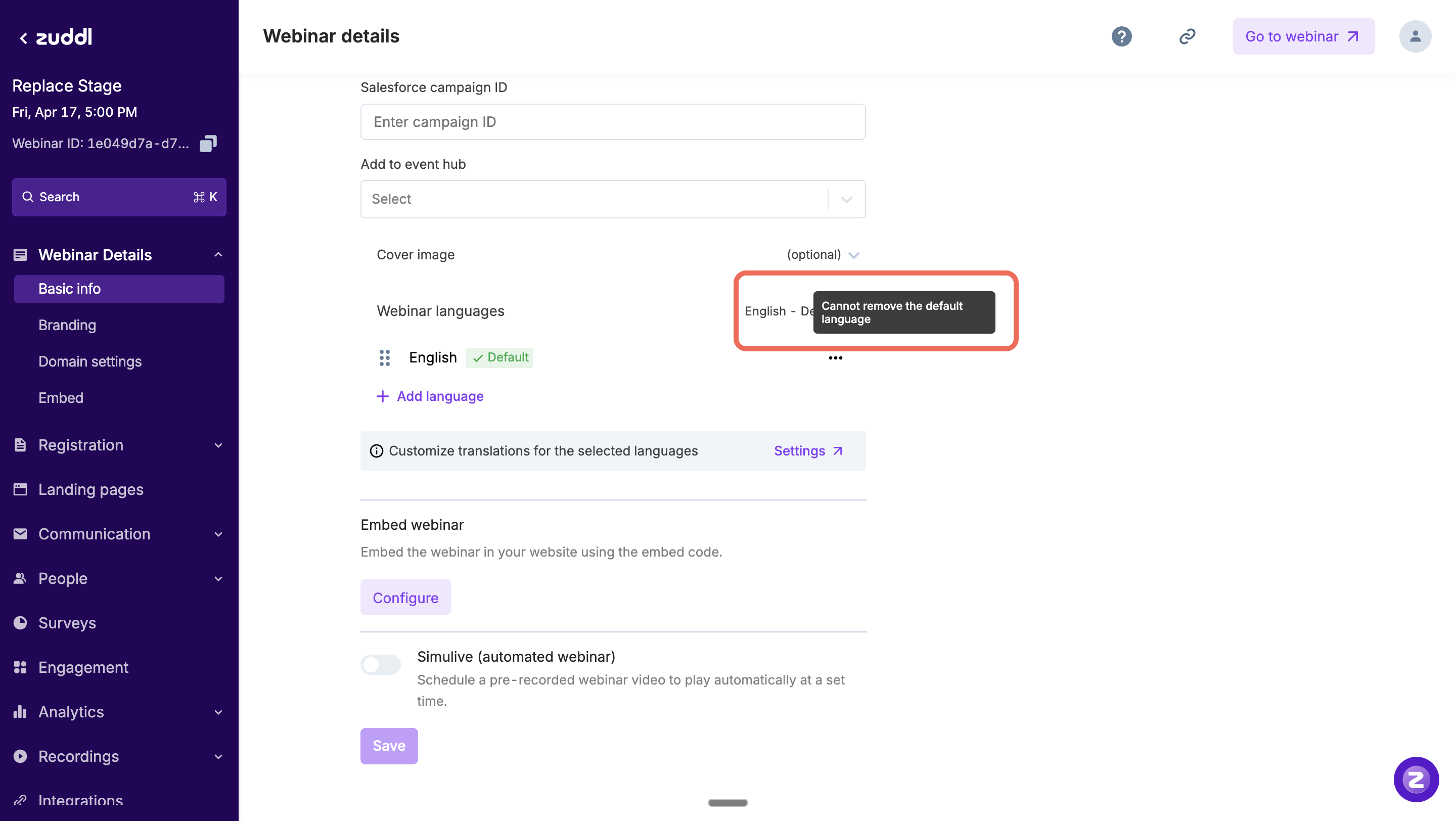
Tip: The translation icon becomes visible as soon as more than one language is configured. You can also drag and drop to reorder languages as they appear to attendees.
Part 2: Review and Manage Text Translations
Once the default language is set, all dynamic organizer-entered content (such as event name, description, and session details) is automatically translated using Google Translate.
To review and refine translations, navigate to the Settings page:
Go to Settings in the left navigation.
Find the Manage webinar languages card. It shows your selected languages and provides two actions:
Edit translations — opens the translations management page.
Add/remove languages — opens the language selection in a new tab.
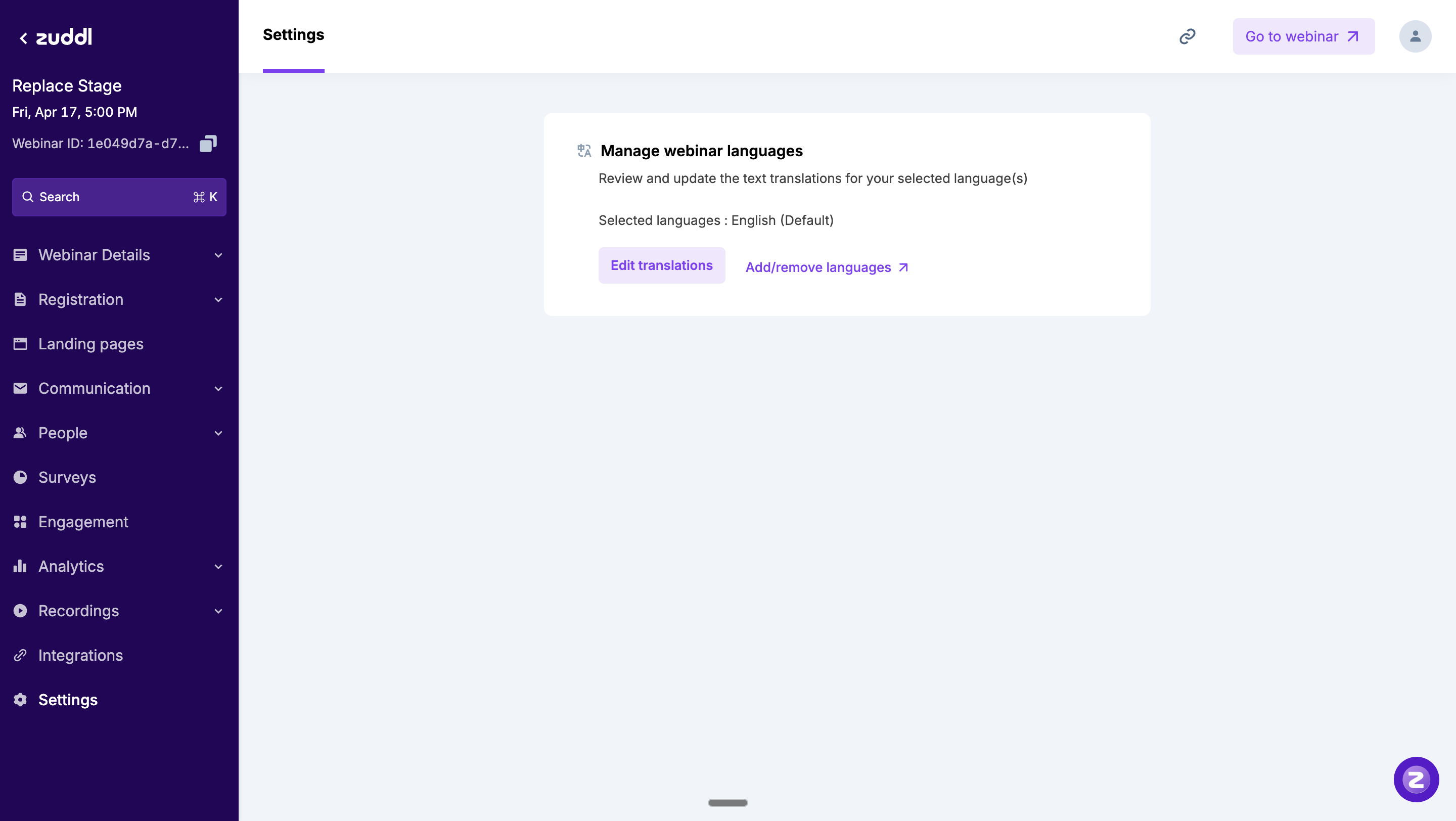
Click Edit translations to manage translations via the CSV workflow:
Download CSV: Downloads all translatable texts with auto-generated translations pre-filled.
Edit: Update specific translations in the CSV file. Leave a cell empty to fall back to the default language.
Upload CSV: Re-upload the edited CSV. Map columns to the respective languages.
Note: Once you upload organiser-provided translations via CSV, the system respects those values and does not auto-translate those fields again.
Single language update:
Download the current translations for one language as a CSV.
Upload an edited CSV for that language.
Or use Reset to default to clear all custom translations and revert to auto-translations.
Multiple languages update:
Select multiple languages using checkboxes.
Download individual CSV files or a single combined CSV.
Upload a CSV with one or more languages and map columns during upload.
What Happens Next
For attendees on landing pages and forms:
A language switcher appears on the webinar landing page and registration forms.
Attendees select their preferred language, and all page content is displayed in that language.
Embeddable registration forms on third-party websites also include the language switcher.
During a live webinar:
Attendees can access the language switcher using the translation icon in the bottom toolbar of the live webinar stage.
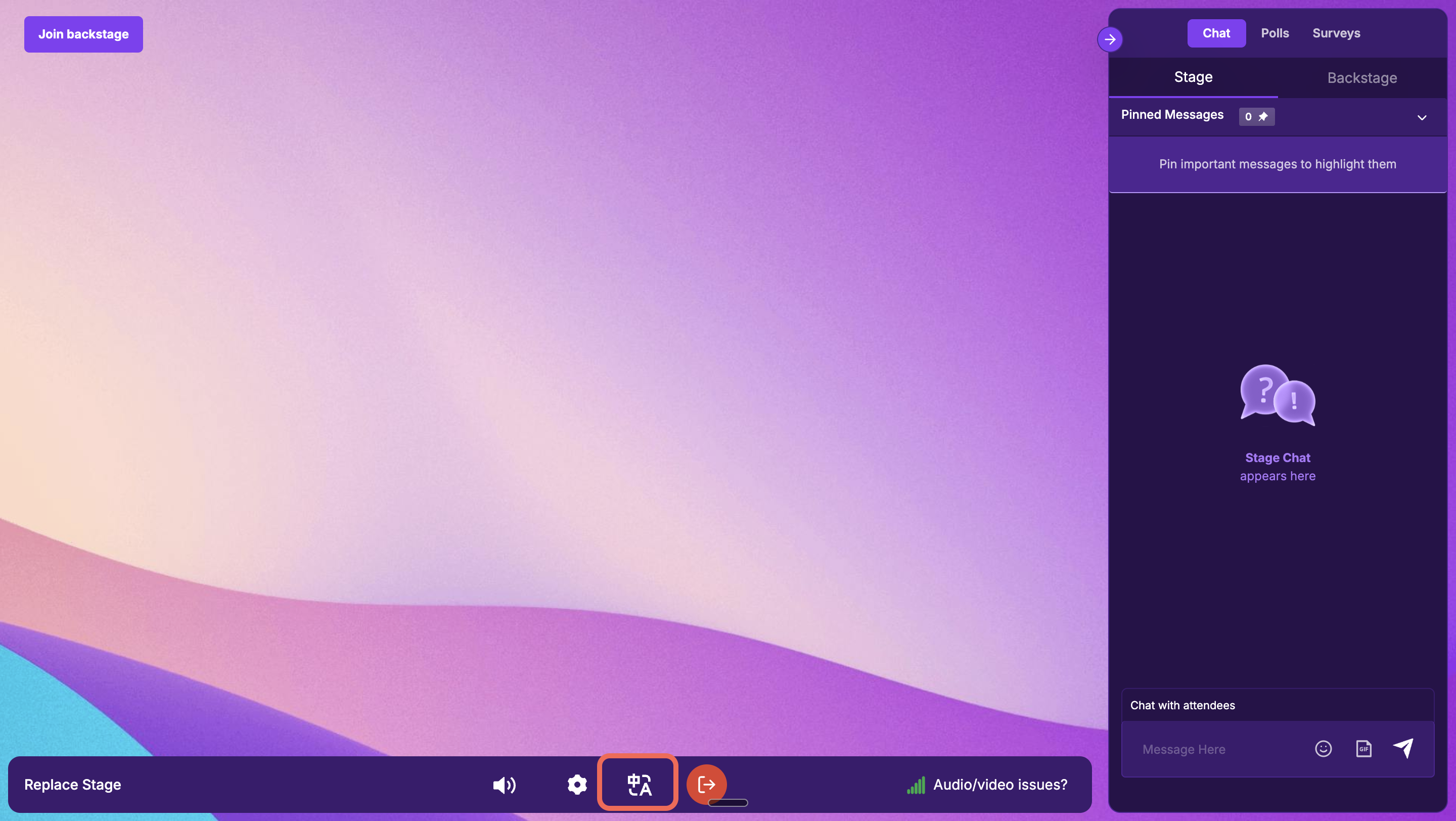
Clicking the translation icon opens the language picker, showing all configured languages. The currently active language is indicated with a checkmark.
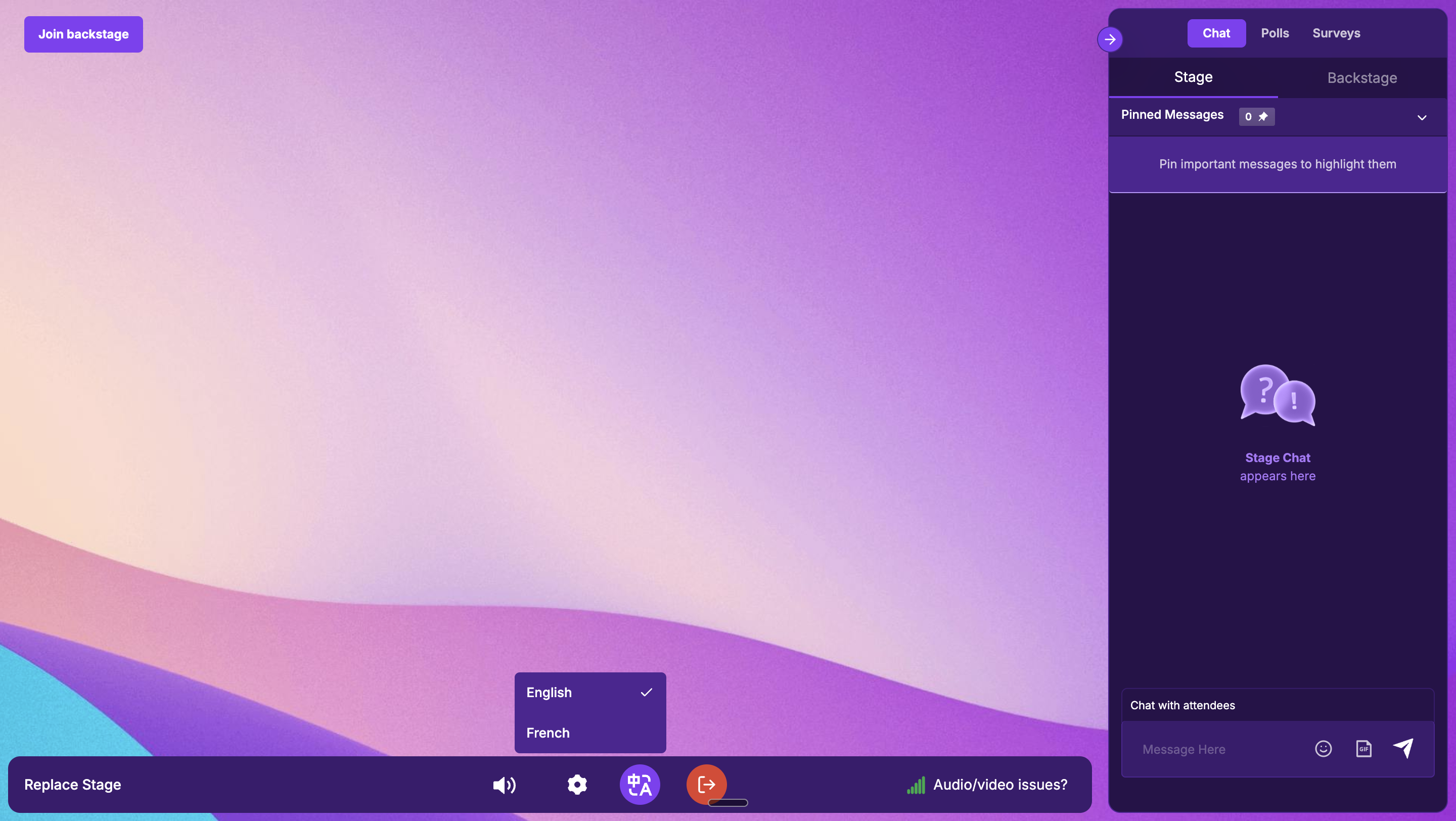
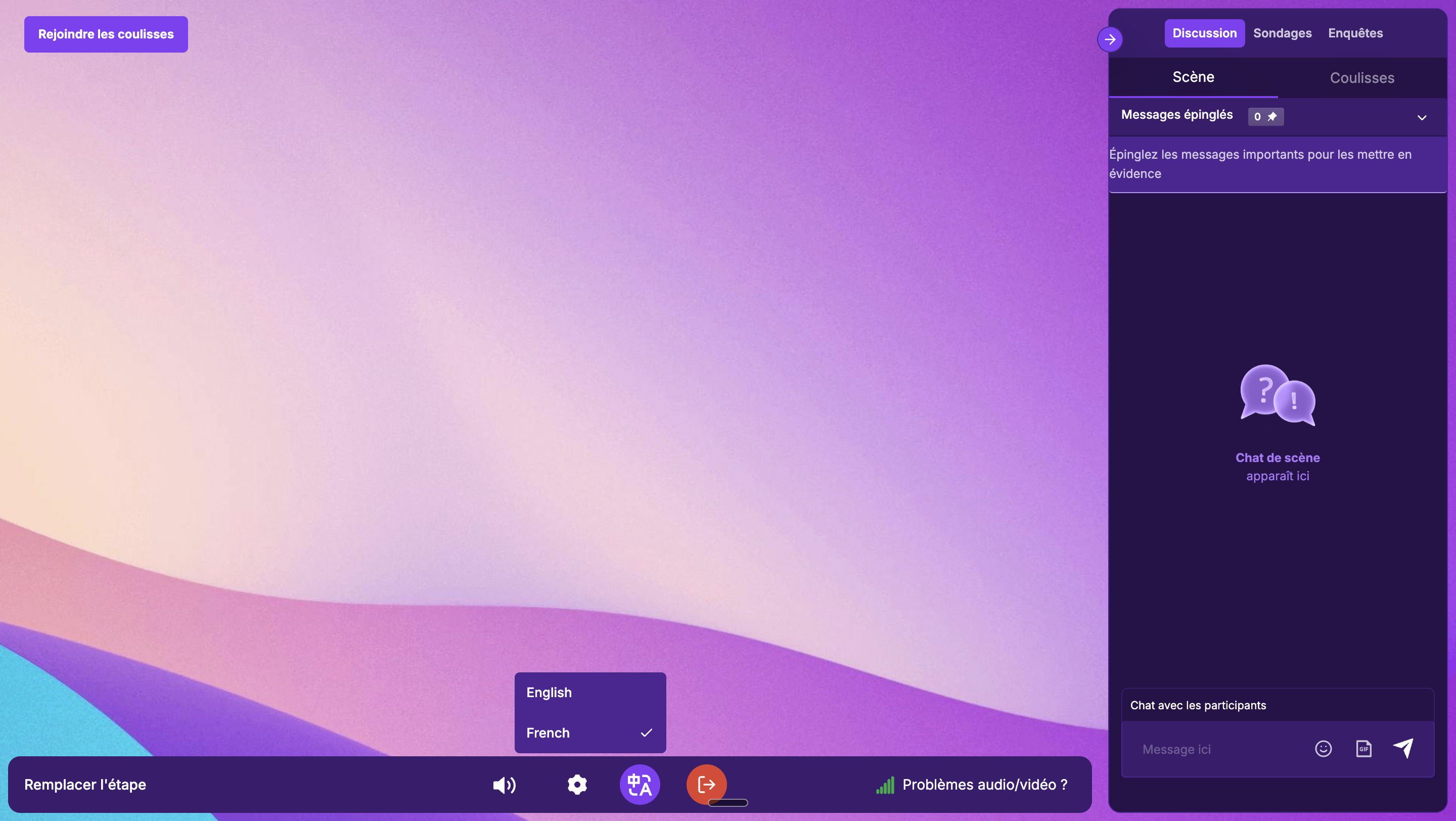
When an attendee selects a different language (e.g., French), the entire webinar UI is translated — including navigation tabs, button labels, chat panel labels, system messages, and toolbar text.
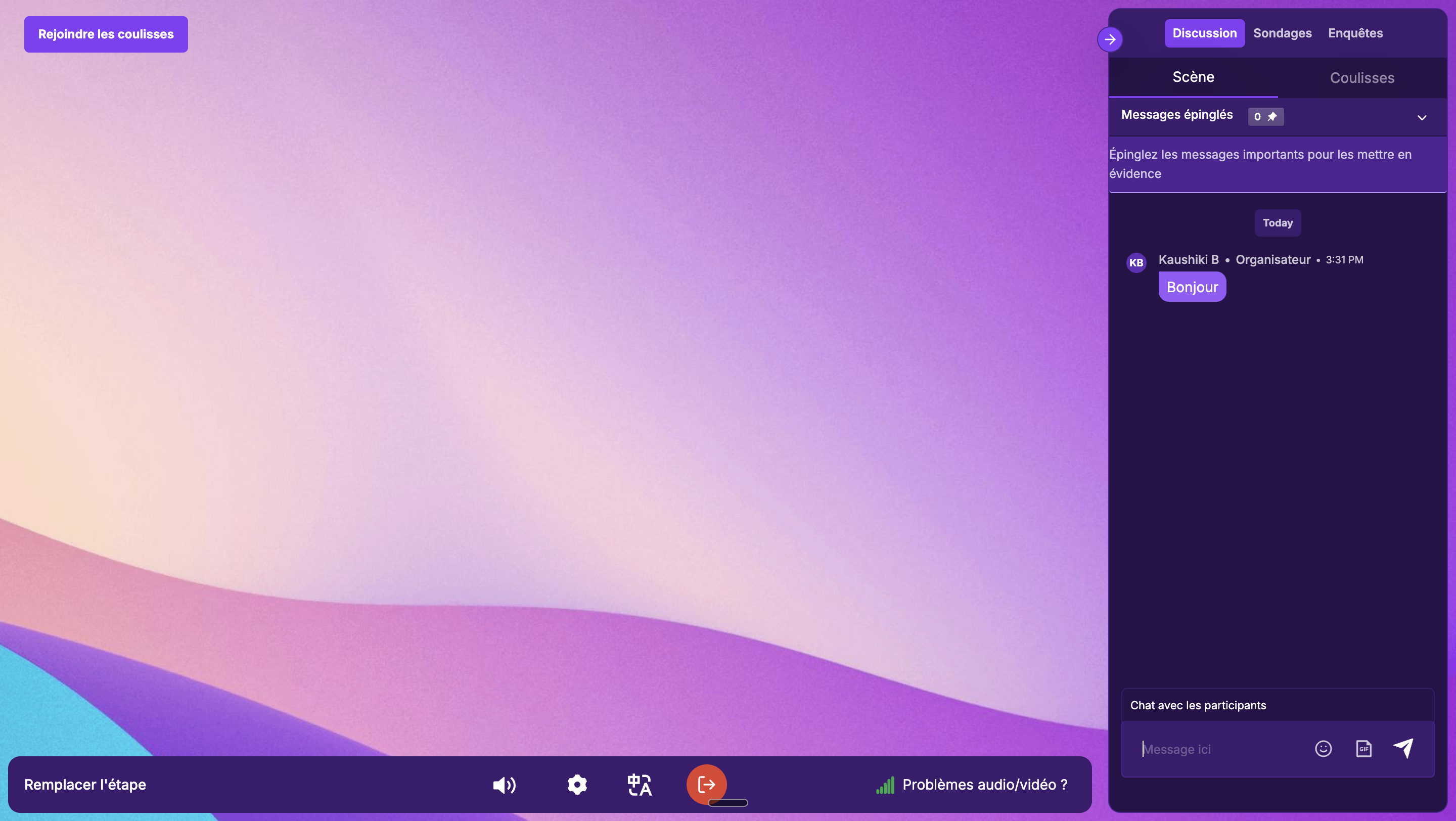
Dynamic content like chats, live polls, and surveys is also automatically translated in real time.
Notes
Default language behavior: If a translation is missing for any text, the system falls back to the text in the default language.
No double translation: Auto-translation only applies to content not already covered by system translations or organiser-uploaded CSV translations.
CSV override rules: If you delete a translation cell and re-upload the CSV, that text falls back to the default language. The attendee-side auto-translation will also not re-translate it.
System texts: All system-generated texts (day/month names, time zones, button labels, error states, placeholder text) are translated by Zuddl automatically. These are not editable by organizers.
Event duplication: When you duplicate an event, all custom translations (both auto-generated and organizer-uploaded) are duplicated with the new event.